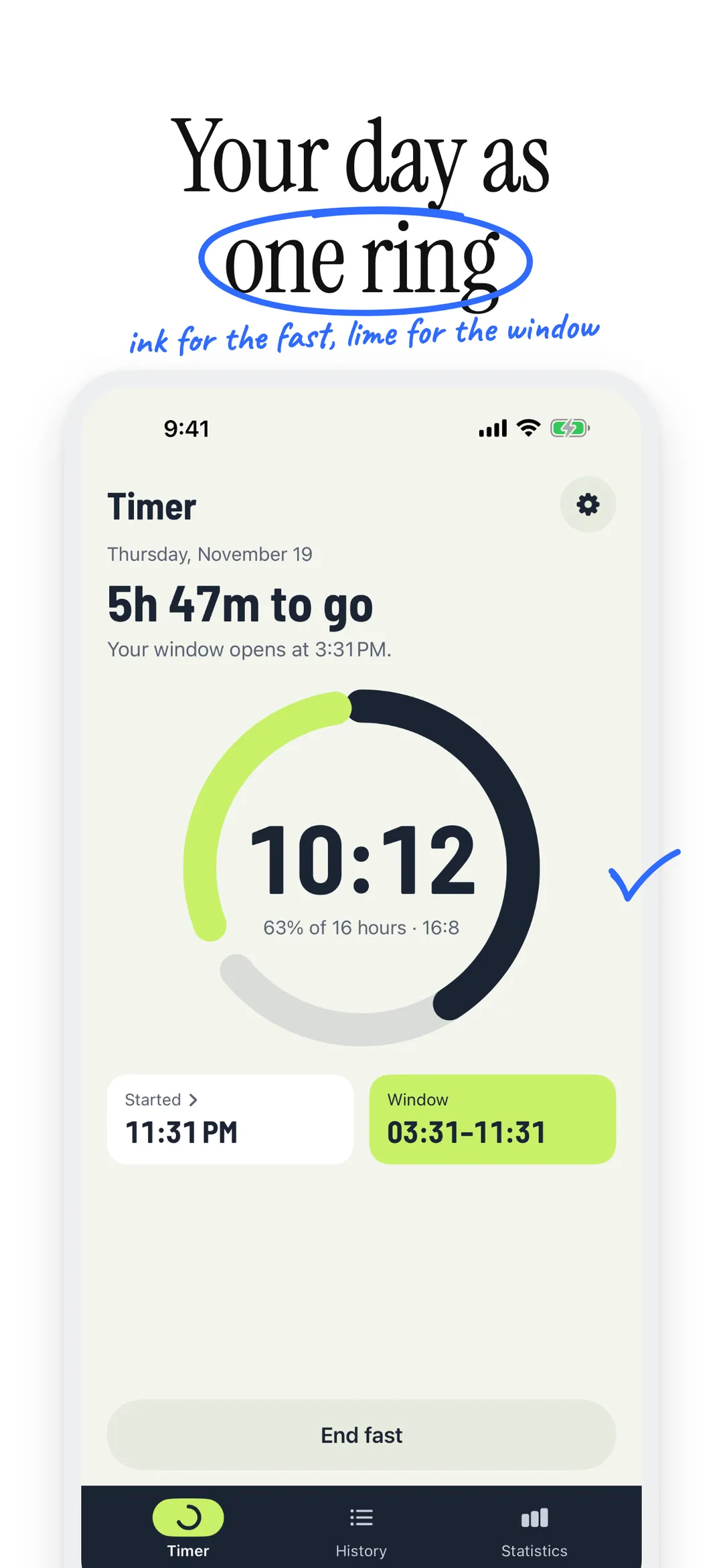
Fast Easy times your fast from the moment you tap Start and shows your day as one ring: the fast in ink, then your eating window in lime. When the ring is full, the window opens.
The headline says how long is left and when you can eat, in plain words. Follow it on your Lock Screen, in the Dynamic Island and on your Home Screen. No sign-in, and your fasts stay on your device.
Get Fast Easy on the App Store The Fast Easy page
Who it’s for
Fast Easy is for people who already follow an intermittent fasting schedule, or want to try one, and would like a clear timer instead of mental math. It covers the common plans and any custom length in between.
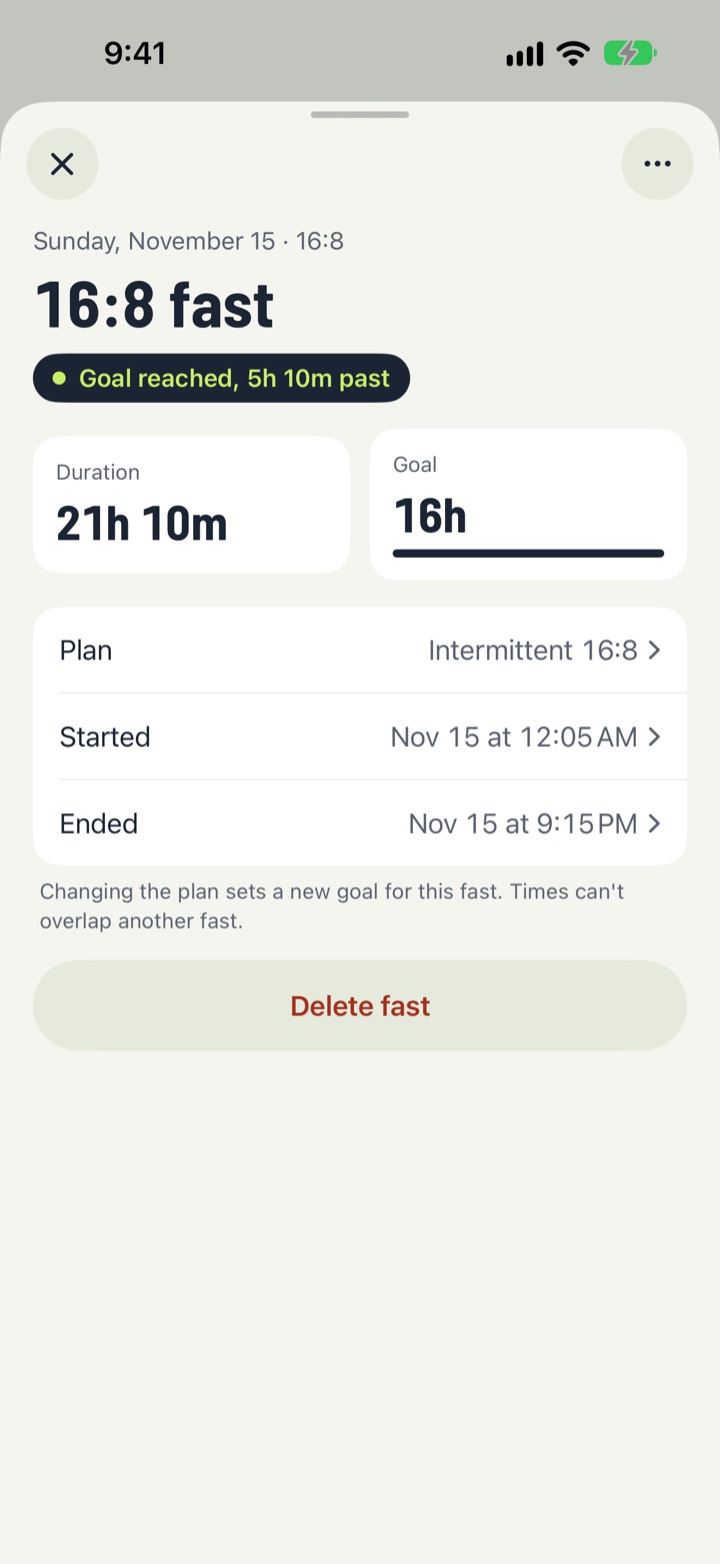
It’s also for anyone who forgets to tap Start on time. You can move a start time back, correct a fast later, or log one you didn’t time.
Pick a plan
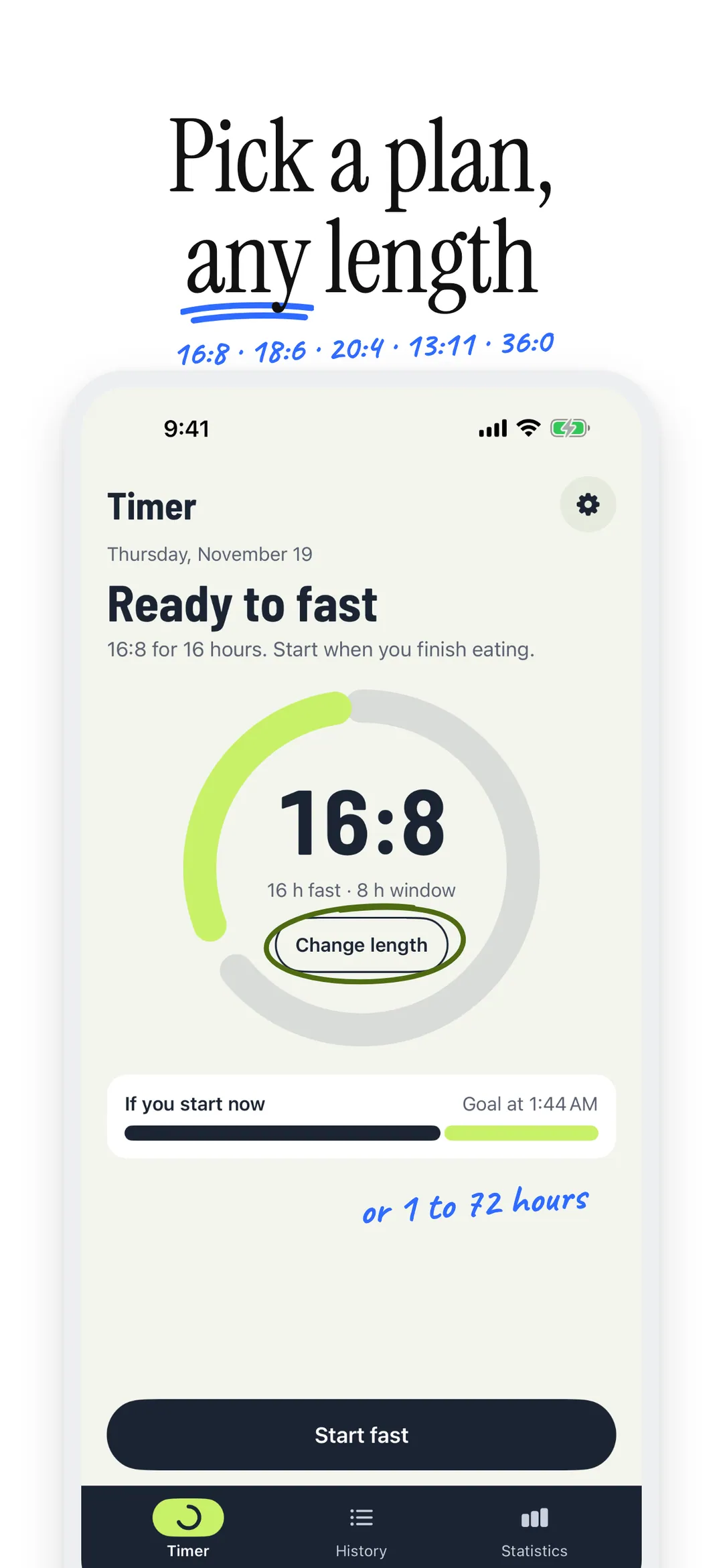
16:8 suits most people, 18:6 and 20:4 stretch the fast, circadian 13:11 is a gentle start, and Monk’s 36:0, which spans a day and a night. Or set any length from 1 to 72 hours.
The clock runs on real time, so closing the app or restarting your iPhone or iPad doesn’t lose a second.
Know when your window opens
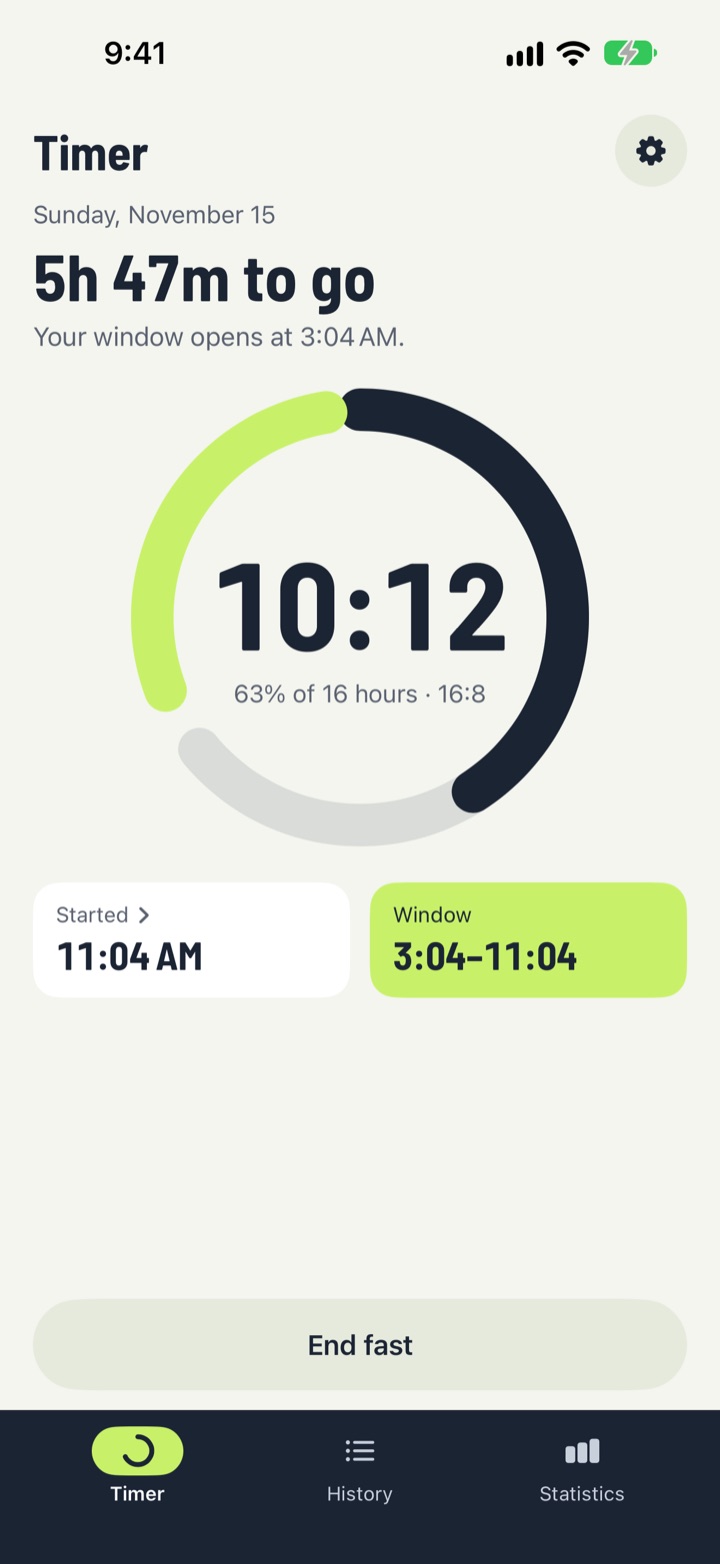
The Timer screen leads with how long is left and when your window opens. Under the ring, two cards show when you started and the hours of your eating window. A notification arrives at your goal, and the timer keeps counting into your window until you end the fast.
Started late? Move the start time back.
On your Lock Screen and Home Screen
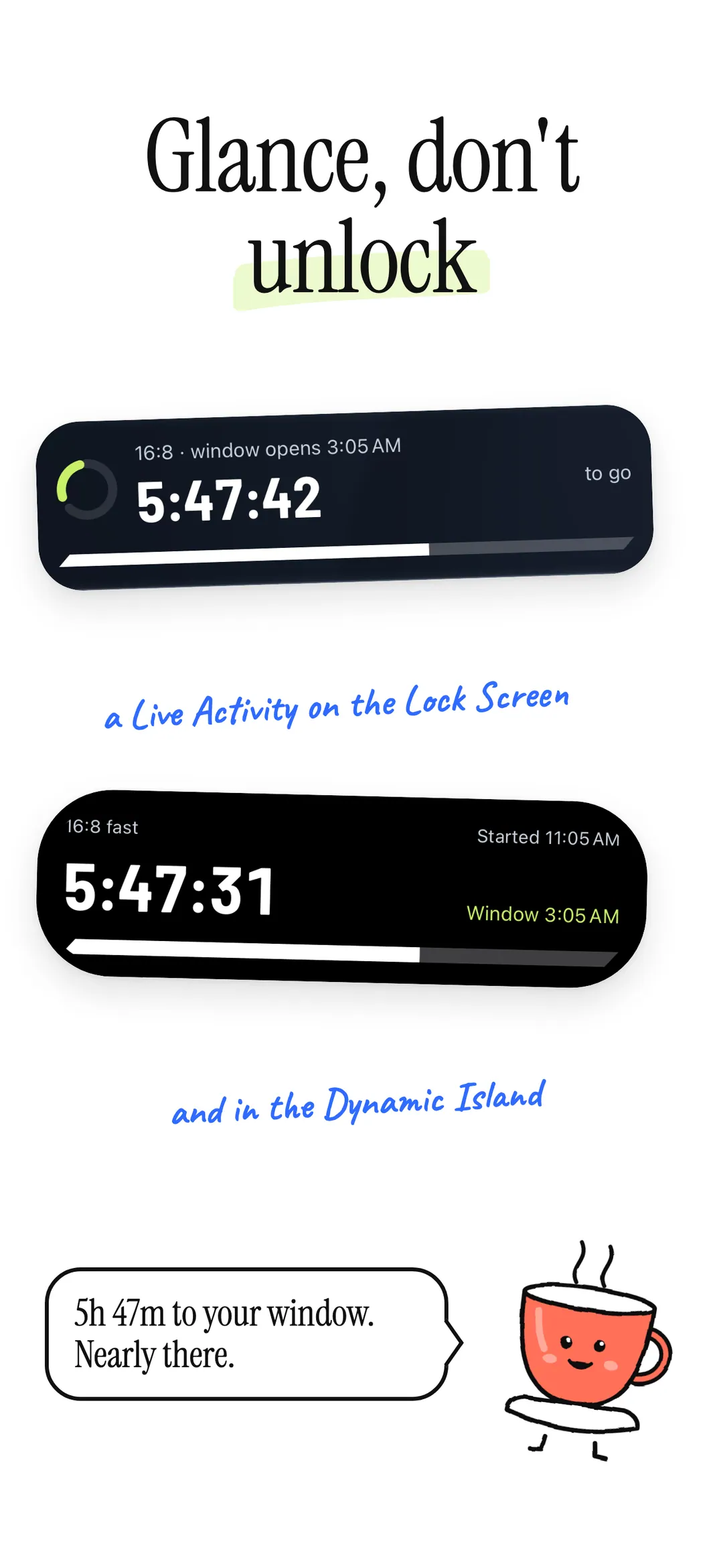
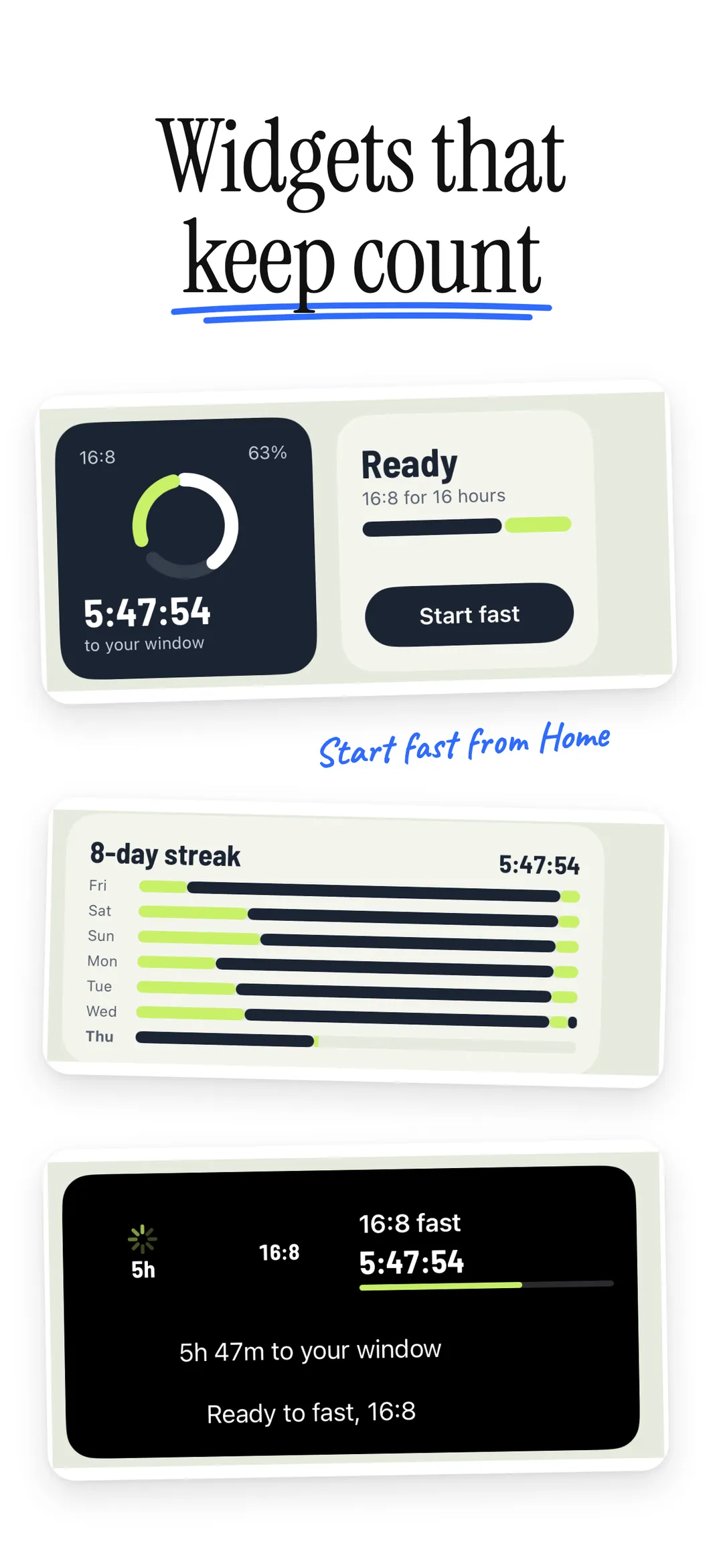
A Live Activity counts down on the Lock Screen and in the Dynamic Island, turning lime when the window opens. Home Screen widgets show the ring, a Start fast button and your week, and Lock Screen widgets keep the countdown close.
Put together, that means you rarely need to open the app mid-fast. Start from a widget, glance at the countdown without unlocking, and come back when your window opens.
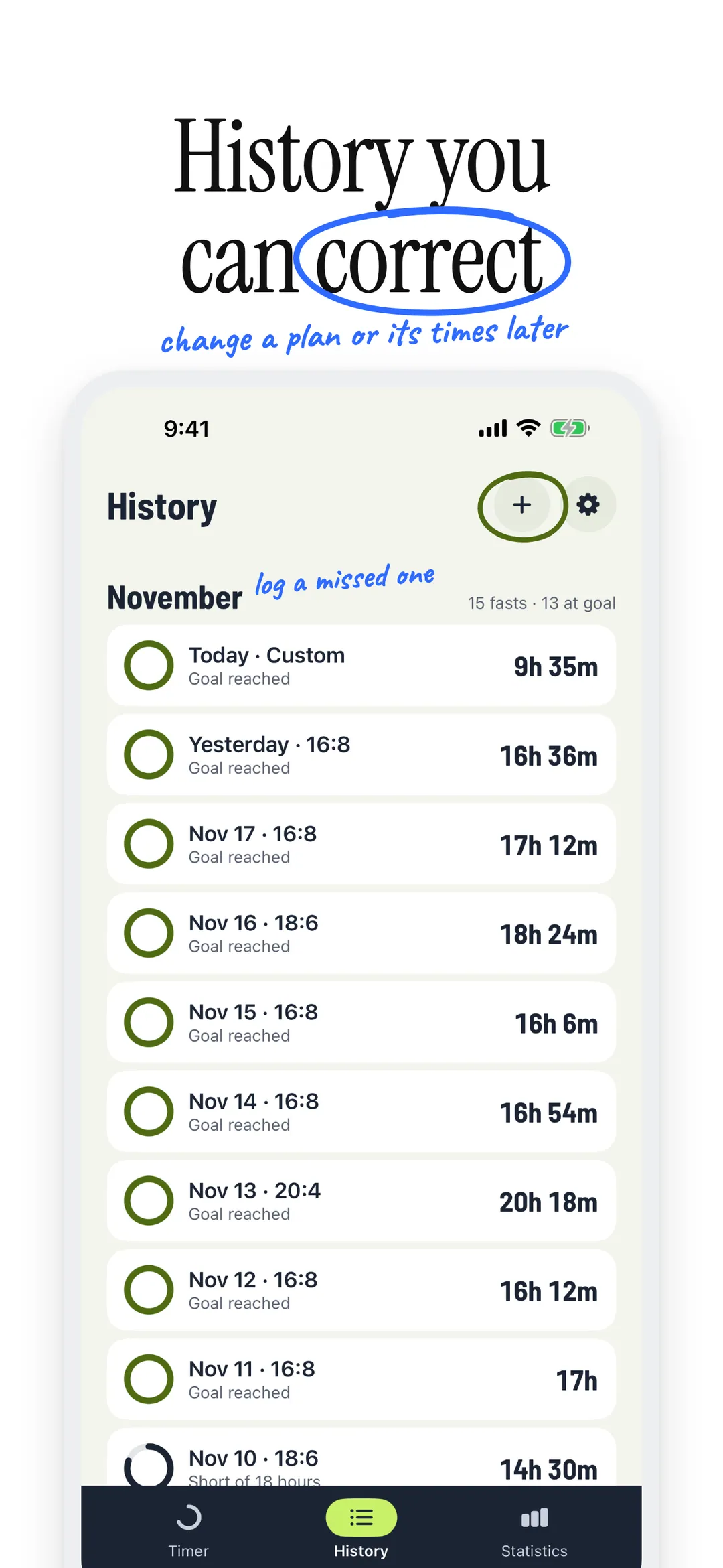
History you can correct, and your week in strips
Every fast is listed by month with how close it came. Change its plan or times later, or log a fast you didn’t time; times can’t overlap another fast.
Statistics shows streaks, totals, average length and how often you reach your goal, plus the last seven days drawn midnight to midnight. If you allow it, Fast Easy reads your weight from Apple Health to chart beside your fasts, and it never writes to Health.
- Change a fast’s plan, start or end time after the fact
- Log a fast you didn’t time
- Charts of your last 14 fasts against their goals
- A dark look for late nights
- On iPad, your day sits beside the timer, and it works in Split View and Stage Manager with keyboard shortcuts
Why we made Fast Easy
A fasting timer should answer one question at a glance: how long until I can eat? Fast Easy puts that answer in the headline and draws the whole day as one ring, so there’s nothing to decode.
Fast Easy is on the App Store for iPhone and iPad. There’s no sign-in, and your fasts and weight stay on your device; anonymous diagnostics help fix problems, never include your fasts, goals or weight, and can be turned off in Settings. The in-app fasting science is a general guide to what tends to happen hour by hour, not medical advice, so talk to your doctor before you start a fasting routine.
Get Fast Easy on the App Store Screenshots, FAQ and privacy for Fast Easy